Block commands
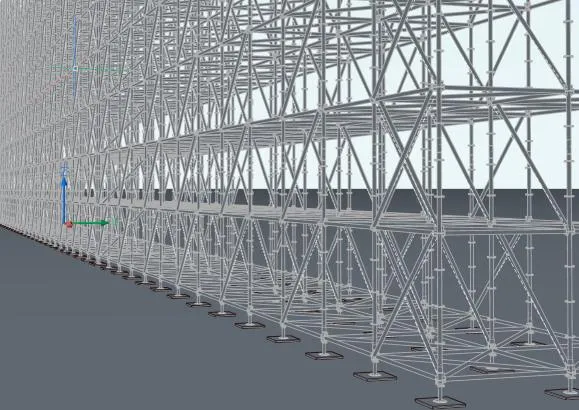
A block is a named, composite component. A block consists of lines, solids, etc., but can also contain other blocks. There are many advantages, including:
- A block is defined once in the drawing and can then appear in an unlimited number of places. This means a fairly complex block that appears 100 times still results in a very small drawing. Even though the block is complex, its description is only needed once.
- Components can be moved as a whole without having to select separate objects.
- Blocks have a name and can be counted.
- A block can contain extra text information that can be unique per block (attributes).
Creating a block
A block is mainly created in these ways:
- When inserting a block from the library.
- With the
BLOCKcommand, which combines objects in the drawing into a block. - With the
INSERTcommand, which inserts a drawing (DWG file). The file name of the DWG becomes the block name. - By copying (ctrl-v) and then using Paste as block (usually in the right-click menu). This is not recommended, because a random block name is generated. If needed, rename the block right after pasting with RB (Rename Block).
Attributes
Attributes are texts in a block that you can fill in. Create an attribute with ATTDEF and fill in the Tag (Prompt is the same as the name) and the Default value. You usually leave the default empty, or use just a dash so you can see that an attribute is there. Check the size, although you can easily change it later in properties. Click the icon next to Insert Coordinates, then click the place where you want the attribute. Once the attribute is placed, you can click it and change the text size, color, etc. in the properties. You can also change its position.
If you are in the block editor, go back to the drawing now and type SCATTSYNC. This is needed to update all blocks in the drawing with the change. If you have a separate file that should become a block, you can save it now and bring it in with INSERT.
An advanced option is to click the icon behind Default. In the menu that follows, you can have SCAD Re-Event fill in the value, for example the date or even the GPS coordinates of a block.
Optional settings for defining attributes
If the Multiple lines option is enabled, the Default text field is greyed out. Click the button next to the Default text field. The Define Attribute dialog closes temporarily so you can create an Mtext object.
Do one of the following:
– Enter the X, Y and Z coordinates for the insertion point of the attribute. – Click the Pick Point button to pick the insertion point in the drawing. You get the prompt: Select insertion point.
The Define Attribute dialog closes temporarily.
(Optional) Set the Invisible flag. Attributes with this flag are not displayed and not printed.
If the system variable ATTMODE (Attribute Display Mode) is set to 2, all attributes are displayed, including hidden attributes.
(Optional) Set the Constant flag. Attributes with this flag cannot be edited.
(Optional) Set the Verify flag. Attributes with this flag must be explicitly confirmed when a block with these attributes is inserted.
(Optional) Set the Preset flag. When you insert a block, you are not prompted to fill in attributes that have this flag. You can still edit the attributes later.
(Optional) Set the Lock Position flag to lock the position of the attribute within the block reference. Unlocked attributes can be moved with grips relative to the rest of the block, and multiline attributes can be scaled.
Define the text properties: Text Style, Justification, Annotative, Height and Rotation.
Click OK to create the attribute in the drawing. The Define Attribute dialog closes.
SCAD Re-Event commands related to blocks
SCAD Re-Event works with blocks a lot, so many commands work with blocks. Many of these commands are also described elsewhere on this site. Below is a list of commonly used ones.
| Name | Description |
|---|---|
| RXB/RYB/RZB | Rotates all objects that have an insertion point (such as blocks and texts) around that point by a specified angle. Other objects are ignored. Each object rotates around its own reference point, about the X, Y or Z axis. |
RXBI/RYBI/RZBI | Like RXB/RYB/RZB, but the axis of rotation is the block’s own axis. Each block rotates around its own X, Y or Z axis. |
RBCLEAN | Resets the rotation of each selected block to 0. |
ROTDYN | Aligns blocks to a certain point. All blocks are oriented with their Y axis pointing toward the cursor. |
| SF | Selection filter. Filters a selection by Block, Color, Entity, Layer or lineType. First specify what the filter should be, then select an example object with the right property, for example a block. The program then asks for a selection again, but objects that do not meet the criterion are no longer selected. |
WBLOCKM | Writes all blocks in the drawing to a folder you specify. WBLOCKM is a handy tool to find out why a drawing is very large. Look in the folder the blocks were written to and sort by size. |
SELBLK | Select one block, and this command then selects all other blocks (inserts) of the same kind in the drawing. Together with REPLACE you can quickly swap, for example, one type of light for another without going through all the inserts in the drawing. If an isolation (command ISOL) is active, invisible objects are not searched. |
SELBLKS | Like SELBLK, but you can select multiple blocks. Together with REPLACE you can quickly swap, for example, one type of light for another without going through all the inserts in the drawing. |
REPLACE | Replaces a block with another block. Only the selected blocks are replaced, so the block definition itself stays intact. You can select several blocks at once and replace them with another block. Optionally use this command together with SELBLK or SELBLKS to replace a certain block with another block, for example all lights of one brand with another brand. |
REPLACEGLOBAL | Replaces a block with another block, also when the block to be replaced is nested inside another block. |
SHOWDUPBLK | Selects all duplicate blocks, meaning blocks in the same place with the same rotation. This matters especially for the count of the drawing. |
| CBI | Change Block Insertionpoint: changes the insertion point (reference point) of a block. Note that the contents of the block shift when the reference point changes, while the reference point itself stays in the same place. |
CBIR | Changes the reference point of a block so that the contents of the block stay in the same place and the reference point jumps to the new place. |
| RB | Rename Block: changes the name of the block. The block is renamed everywhere it appears in the drawing. |
| CB | Copy Block: makes a copy of the block with a new name. Ideal when a block needs to be changed, but not in all the places where it appears. After CB the block is unique, and a change affects only that one block. |
RBCLEAN | Removes all rotation from the block. |
| GEOM | Shows the 3D rotation of the block in the command bar (at the bottom of the screen). |
BLKIMPORT | Imports all DWGs from a folder and places the blocks next to each other in the current drawing. Sometimes used together with WBLOCKM to quickly make changes to all DWGs in a folder (in the library, for example). |