Selecting
The first step in copying objects from or to other drawings is building a selection set. The fastest methods for selecting objects are
Window Inside 
and
Window Overlap 
When no command is active, a selection window is drawn when you hold down the left mouse button and move the mouse. If you move the mouse to the left, the selection window turns green and dotted. All objects that fall completely or partly inside the window are selected. If you move the mouse to the right, the selection window turns blue and is drawn with a solid line. Only objects that fall completely inside the window are selected. Along with the window border (green or blue), an icon next to the cursor shows the selection method in use: Window Overlap or Window Inside.
You can also select an object by clicking it with the mouse. If the Shift key is held down while you click an object or use a selection window method, unselected objects are added to the selection set and objects that are already selected are removed from it.
Select Similar
Selects all entities with the same properties as the currently selected entity.
Enter the SEttings option to open this dialog:
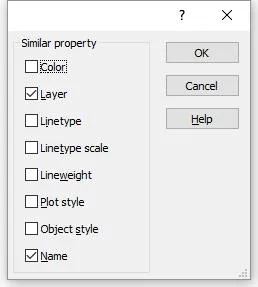
| Option | Description |
|---|---|
| Color | Color number or name |
| Layer | Layer name |
| Linetype | Linetype name |
| Linetype Scale | Linetype scale factor |
| Lineweight | Lineweight value |
| Plotstyle | Plot style name |
| Object style | Name of the applicable style, such as a text, dimension or table style name |
| Name | Entity type, such as line, arc or polyline |
Selection filter
Sometimes it is useful to use a window selection that doesn’t select all objects, but only objects of a certain kind or with a certain block name. Use the command SF for this, or click it in the ribbon:
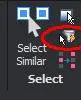
The command responds in the command bar with these options:

Choose the capital letter of the option and press Enter, or press Enter right away if the right option is already suggested.
Option | Description |
|---|---|
| Block | Click a block, then SCAD Re-Event asks again: Select entities. Use the Window Inside or Window Overlap (blue or green) window as explained at the top of this page. Only blocks with the specified name are selected. |
| Color | Only objects with the same color are selected. Keep in mind that an entity can have a color that is determined by the layer (color: bylayer). |
| Entity | All entities of the same kind are selected, such as lines, hatches, etc. |
| Layer | All entities on the same layer are selected. |
| Linetype | All entities with the same linetype are selected. |
| Previous | The previous choice is used. |
Selecting duplicate blocks
The command SHOWDUPBLK selects all blocks that are in the same place.
After selecting, you can, for example, delete the blocks with DELETE. One block always remains. The command doesn’t search inside a block, so it only works on blocks that can be selected individually in the drawing.