Display commands
Most display commands are in the ribbon under View, but you don’t need them in daily use of SCAD Re-Event. Most of the work is done with the mouse.

Below is an overview of the mouse functions.
| Key/ Mouse Button | Action | Result |
|---|---|---|
| Scroll wheel | Scroll | Zoom in/out 1 |
| Scroll wheel 2 | Hold down while moving the mouse. | Pan dynamically |
| Scroll wheel 2 | Double click | The whole drawing is brought into view. |
| Ctrl + Shift + Left button | Hold down while moving the mouse. | Zoom in/out |
| Shift + Scroll wheel 2 | Hold down while moving the mouse. | Rotate dynamically in 3D 3 |
| Ctrl + Right button | Hold down while moving the mouse. | Rotate dynamically in 2D3 |
Display control with the keyboard
|Button |Action |Result
|—|—|
|Pg Up |Top view |The drawing is shown from above, no 3D snap (snap points are projected onto the set working height).
|Pg Dn |Isometric view |Isometric view, 3D snap.
|End |Perspective |The drawing is shown in perspective. 4
|Home |Parallel |The drawing is shown without perspective.
1 The interval for the scroll wheel movement (zoom factor) is set by the system variable Zoom Factor. Type ZOOMFACTOR in the command bar to change this variable.
2 By default, the system variable Middle Button Pan is On.
Type MBUTTONPAN in the command bar to change this variable. If Middle Button Pan is OFF, pressing the scroll wheel opens a screen with all Entity Snaps (see Module 2: Dimensioning in a drawing - 1. Entity Snaps).
3 Use the Look From tool 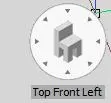 or PgUp/PgDn to go back to a standard view of the drawing.
4 In perspective, you can adjust the amount of perspective in the properties bar:
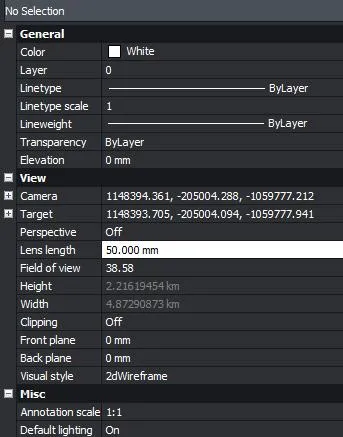
A lens length lower than 50, for example 16, gives a wider-angle view, which is useful for small spaces.