Editing Objects
Move and copy objects
Normally you select the objects you want to move first. Start moving with the M command (not MOVE) or click Move in the ribbon:

SCAD Re-Event asks for a reference point. If you selected a single object, such as a block, ENTER uses the object’s default reference point. If you selected several objects, the default reference point is at the bottom left of the selection. During the move command you have the same options as when inserting objects from the library (see above). Note that you can rotate the objects before you place them (with CTRL or F9).
Special move commands
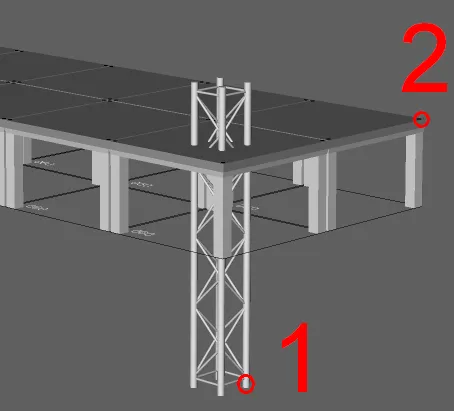
MX, MY, MZ: move the objects in the X, Y or Z direction. You can enter a distance by clicking in the drawing or by typing a number. The number can end in “m”, “cm” or “mm”, which converts the unit accordingly. This only works correctly if the current units are meters or millimeters (enter UNITS to check). To move an object to a certain Z height, click the point that should be at the new height, then click the height itself.
Example: moving a truss to the stage height (MZ):
CX, CY and CZ follow the same rules for entering distances.
Example: to make a floor after placing the first object:
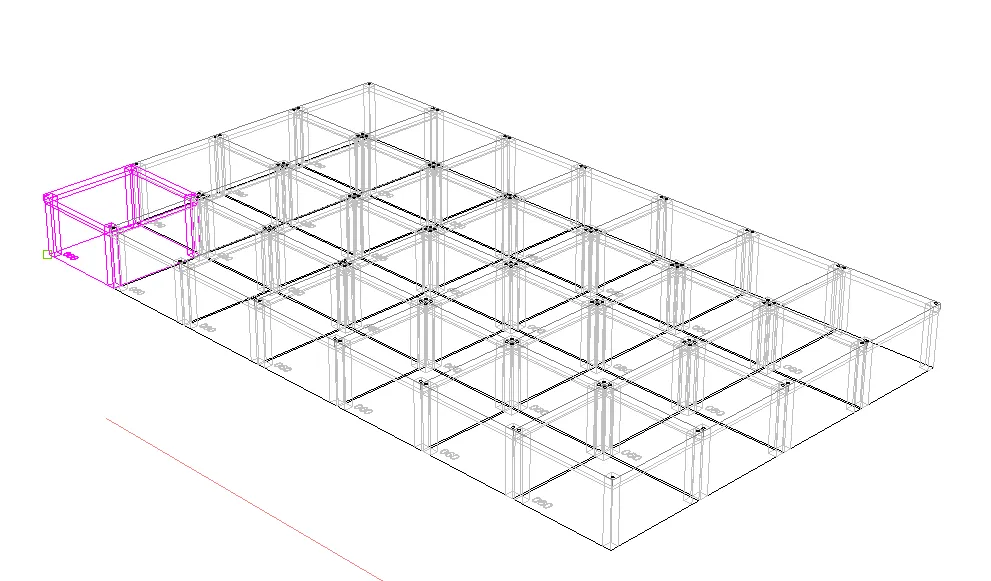
- CX [enter]
- 1m [enter]
- [5x enter]
- Window-select all decks
- CY [enter]
- [2x enter]
Rotate objects
Objects can be rotated while moving or copying. There are also some special rotate commands. Most are designed to rotate blocks, because they use the block’s reference point. RX / RY / RZ
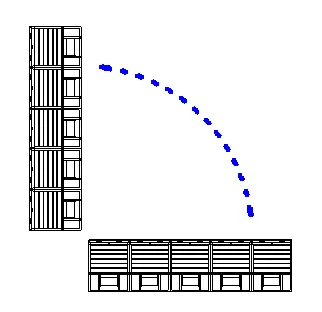
A normal rotate command that rotates objects around the X, Y or Z axis. All objects rotate around the same point.
RZ:
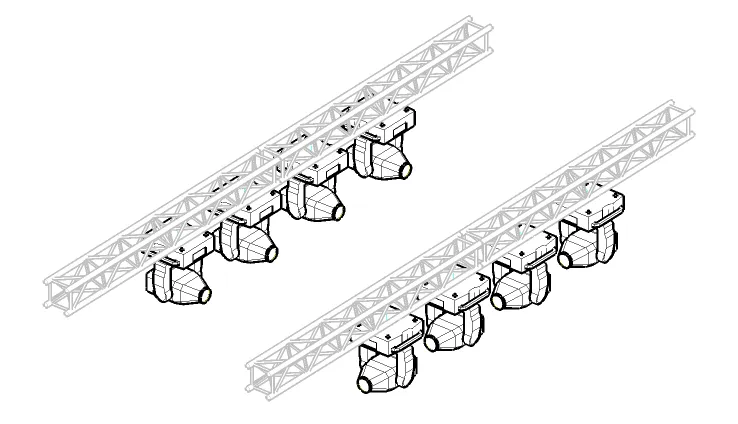
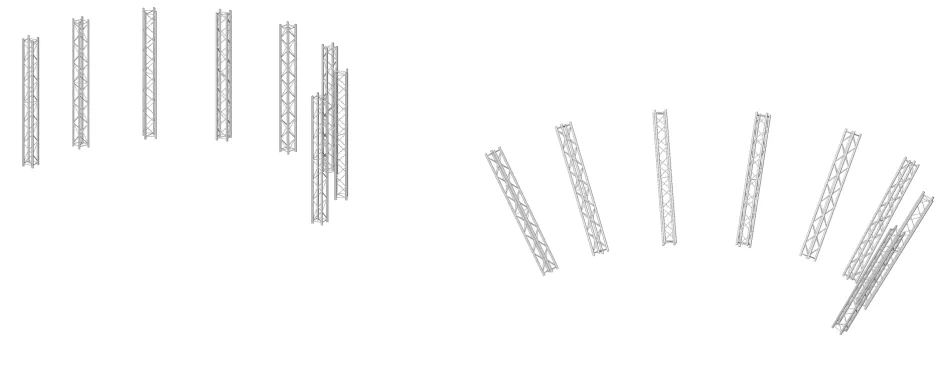
RXB / RYB / RZB: All objects rotate around the X, Y or Z axis, but each item uses its own reference point.
RZB on the luminaires:
RXBI / RYBI / RZBI
Rotates around the X, Y or Z axis, but uses the block’s local axis.
RYBI:
RBCLEAN
When a block is rotated around the Z axis, you can find and change the rotation in the properties bar. But when it is rotated around the X and/or Y axis, the angle(s) are not visible. You can reset the rotation with RBCLEAN. It sets all angles of the block back to the original position.
CB / RB Copy Block / Rename Block
RB lets you rename a block. This is the same as changing the name in the Drawing Explorer. CB creates a new block with a new name. The new block is an exact copy of the original. Use this if you want to change one block without changing all other instances.