Countlist
The COUNTLIST command creates a count list of the blocks in the drawing. For each block, it looks up the data in the database(s), such as weight and description. Set the database(s) with SETLIB.
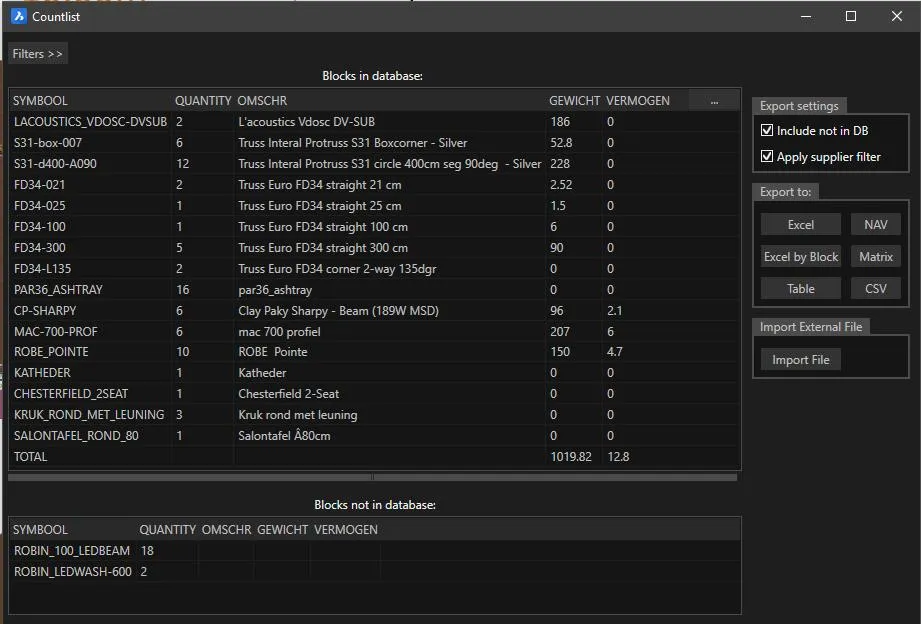
Results are shown on screen and can be exported. The export setting Include not in DB also exports the blocks that were found in the drawing but are not in the database. The setting Apply suplier filter controls whether items from all suppliers are shown, or only from selected suppliers (see SETLIB).
Export to:
- Excel: if Excel is installed on the computer, a new sheet is created and the results are put there.
- NAV: intended for Navision. The export layout can be set up per customer. Ask AniVizzion about the options.
- Excel by block: the results are split per main block. Think of a truss with several lights, cables, etc., or an area at a festival.
- Matrix: the results are put in an Excel document that shows both the individual parts and the parts per main block (see further down this page).
- Table: inserts the results into the drawing as a table.
- CSV: a text file separated by commas or semicolons.
- Import File: adds the results of an external count to the count from the drawing. Mainly intended for the optional Bridle extension of SCAD Re-Event.
Counting subblocks
A block can consist of subblocks (a nested block), but the count is always at the lowest level, unless a sub-block name starts with $ or the (sub)block is in the database. If a nested block starts with $, the parent block is counted. A block whose name starts with $ is not counted.
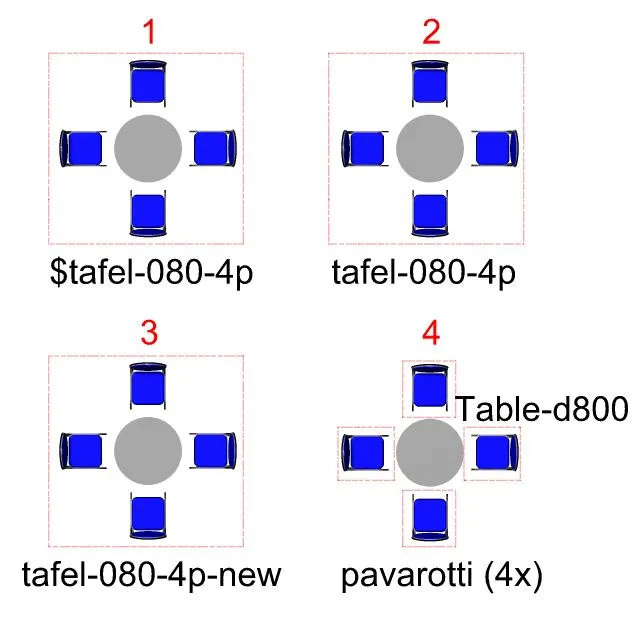
The drawing below consists of 3 sets of 4 chairs and a table.
- The first is called $tafel-080-4p. This name is not in the database. The block consists of sub-blocks (like set 4).
- The second is called tafel-080-4p. This name is in the database. The block consists of sub-blocks (like set 4).
- The third set is called tafel-080-4p-new. This name is not in the database. The block consists of sub-blocks (like set 4).
- The fourth set consists of 4 separate chairs and a table. All items are in the database.
The result:
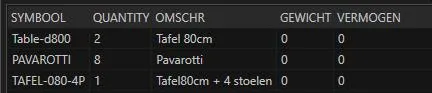
- The first block is not counted (its name starts with $).
- The second block is in the database, so it is counted (symbol TAFEL-080-4P in the result).
- The third block is not in the database, so
COUNTLISTlooks inside the block, where it finds four chairs and a table, which are counted. - The fourth block consists of separate parts that are in the database, so they are simply counted.
Filters
The Filters button opens the list of available filters (Categories and Suppliers).
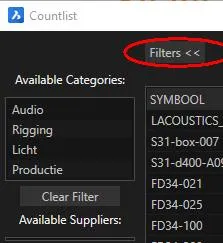
Selecting a category filters the results in the menu: only the items from the selected category are shown. Use the Ctrl key to select several categories. A category is the POST field in the database.
Selecting a supplier colors the results, so you can see at once which items that supplier can deliver.
Setting the database
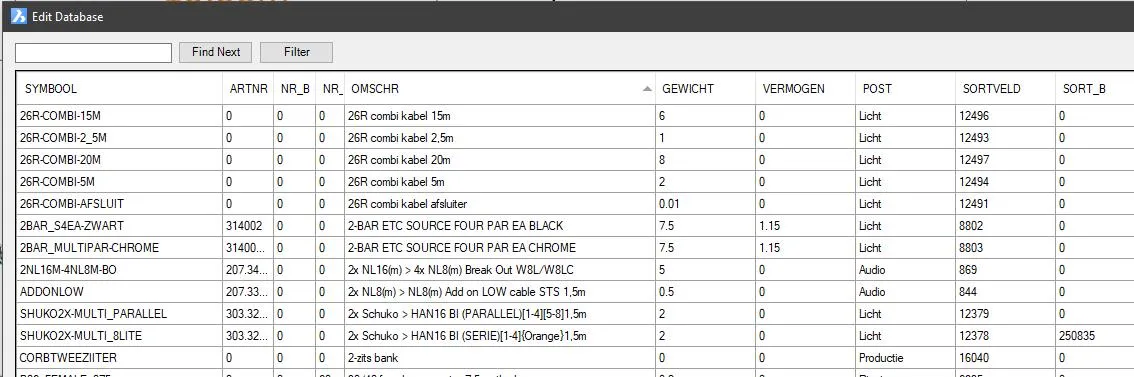
COUNTLIST takes the data for a block from the database. By default this is CADBASE.CSV. This is a list of all block names (the SYMBOOL column) and the data that belongs to each block.
View or edit the database in Excel or with the EDITDATABASE command.
Use SETLIB to set which database(s) are used.
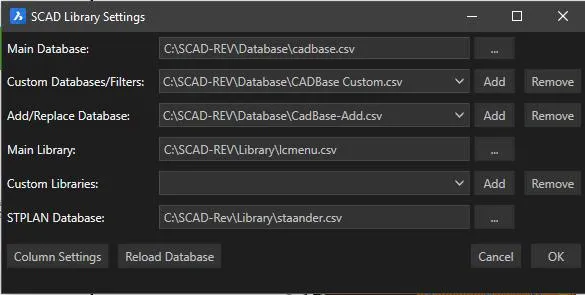
- Main database: usually this is CADBASE.CSV, but it can be a different database.
- Custom Database/Filters: your own database, for example with items or information used within your company. The layout is free and does not have to match CADBASE, as long as it has a SYMBOOL column with the block name. If a block name is in both the main and the custom database, the custom database takes priority.
- Add/Replace Database: a list of rules that can add, rename or replace items when a count is made.
- Main library: the reference to the layout of the icon menu (
SCADLIB). - Custom Libraries: the layout of your own icon menu.
STPLANdatabase: the list of short names for a Staanderplan (a stand plan).- Column settings: set up the power and weight columns.
- Reload Database: reloads the database, for example after editing it in Excel. Make sure the file is closed in Excel.
Add/Replace
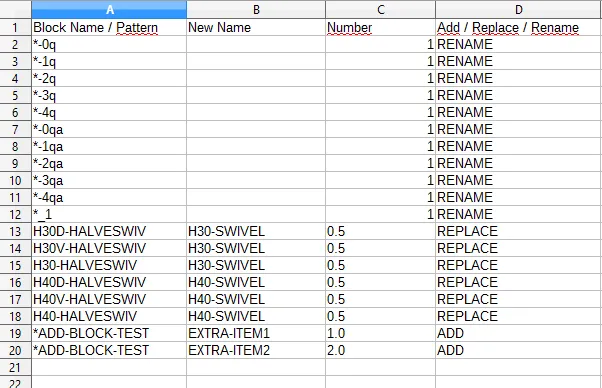
After the count in the drawing is done, this list is used to first check whether any names must be changed. Then items are replaced, and finally items are added. This order matters if, for example, a block is renamed and items must then be added to that renamed block. The order is therefore always rename, replace, add, regardless of the order in the Add/Replace Database.
Adding (ADD)
After the operations above, COUNTLIST checks whether items must be added (“ADD” in the last column). An item may have been renamed first, and other items may still have to be added to that renamed item. In the example, for every item ending in “ADD-BLOCK-TEST”, one extra item “EXTRA-ITEM1” is added, and “EXTRA-ITEM2” is added twice. The original item also stays in the results. This way, simple, non-nested blocks can produce several items in the COUNTLIST results.
Replacing (REPLACE)
If an item must be replaced by another item, the last column contains the text REPLACE. In the example above, “H30D-HALVESWIV” is replaced by “H30-SWIVEL”. The quantity is 0.5, so each block from the first column is replaced by half an item from the second column. In the results, everything is rounded up: 2.5 becomes 3, and so does 2.1.
Suppose you want the count to show how many crates of something you need. Then enter the value of 1 item per crate. For example, if a crate holds 25 pins, replace 1 pin by 1/25th (0.04) of a crate. You then get 1 crate for 20 pins and 2 crates for 30 pins.
Renaming (RENAME)
In the example above, all blocks whose name ends in -3q are renamed to the same name without -3q. The pattern ”*-3q” finds all blocks ending in that name. Besides *, you can also use ? as a wildcard.
If the second column had contained something, it would have replaced the text in the first column. The quantity is always 1 when renaming. The last column determines what happens: if the text here is RENAME, the block is renamed.
Replacing per quantity (REPLACENUM)
If you want to count items per crate but still see the remaining loose items, use REPLACENUM. For example, a crate holds 25 pins and the drawing has 30 pins. The count then shows 1 crate and 5 pins.
SET
Finally, COUNTLIST checks whether any sets can be made. A set means that several separate parts appear as one set in the result. In the example of the tables with chairs (under subblocks), the separate 80 cm table together with the 4 Pavarotti chairs could form a set. In the Add-Replace database it looks like this:

In this example, COUNTLIST checks whether a set of 4 chairs and 1 table can be made. If so (the drawing has at least 4 chairs and 1 table), these items are replaced by a tafel-080-4p, which is an assembled item in the warehouse. The next drawing has several chairs and tables:
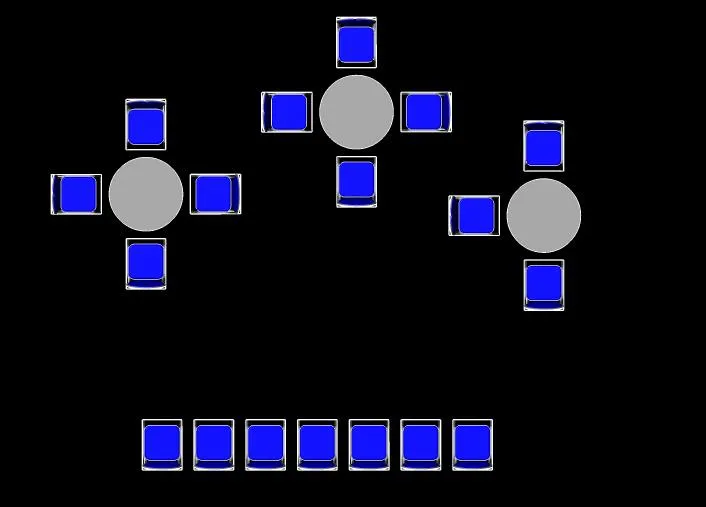
There are 3 tables and 18 chairs in total. When we count this, 3 sets can be made and 6 chairs remain.
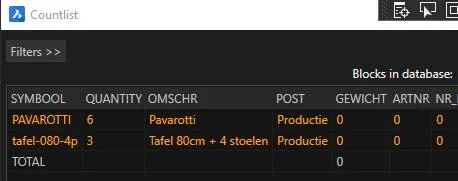
The difference with REPLACENUM is that you do not replace one item that appears a certain number of times in the drawing by one other item (25 pins in 1 crate). Instead, there can be several different items that together form a set. The items do not have to be next to each other, and can also be subblocks in the drawing.
If earlier operations in Add-Replace have changed the list by replacing or adding items, the SET rules work on the changed list. In other words, an item can first be added to the result with ADD and later be combined into a SET.
Skip a block (EXCLUDE)
If a block has the rule EXCLUDE, it is skipped during the count. Subblocks inside the block are not counted either.
Ignore a block name (IGNORE)
After counting, all blocks that have the rule IGNORE are removed from the list. They do not come back on the count list, not even under ‘Not in database’.
Ignore a layer (IGNORELAYER)
If a layer is set with the rule IGNORELAYER, blocks on that layer are skipped. Their subblocks are not counted either.
No visual state in the name (ADV)
If a dynamic block contains visual states, the active visual state is added to the block name by default. To switch this off for specific blocks, use the ADV rule.