Layers
The ribbon has a series of commands (tools) to quickly turn layers off, freeze them and isolate them, without knowing the layer name.
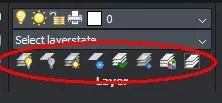
| Command | Icon | Description |
|---|---|---|
LAYON |  | Turns all layers ON (visible). |
LAYOFF |  | Turns the selected layer OFF (invisible). |
LAYLCK |  | (LOCKS) Locks the objects on the selected layer. |
LAYULK |  | (UNLOCKS) Unlocks the objects on the selected layer. |
LAYFRZ |  | (FREEZE) Freezes the objects on the selected layer. |
LAYTHW |  | THAWS all layers. |
LAYISO |  | Turns the layers of the unselected objects OFF or FROZEN. |
LAYUNISO |  | (Undo) Restores the actions of the LAYISO command. |
Turning a layer off (OFF)
- Click the Layer Off icon () in the Layers toolbar. The command bar shows: Select an entity on the layer to be turned off or [Settings]:
- (optional) Choose Settings in the option menu to set the options for the
LAYOFFcommand. - Click an object in the drawing. The layer this object is on is turned off.
- (optional) Repeat the previous step to turn off other layers.
- Right-click or press Enter to end the command.
Locking layers
Objects on a locked (LOCKED) layer stay visible, but can no longer be edited.
- Click the Lock Layer icon ( ) in the layers toolbar. The command bar shows: Select an entity on the layer to be locked:
- Click an object in the drawing. The object’s layer is LOCKED. The display does not change.
- (optional) Right-click to repeat the command.
Layer States
Depending on the complexity of a drawing, it can take some time and effort to set up the display of a drawing for a particular job. Which layers must be visible? Which layers must be locked? Maybe you want to use different colors for some layers temporarily. To restore these changes quickly, save them in a Layer State and restore that layer state later. Layer states can be copied to other drawings and/or saved in a file, which you can import into another drawing on another computer.
Saving a layer state
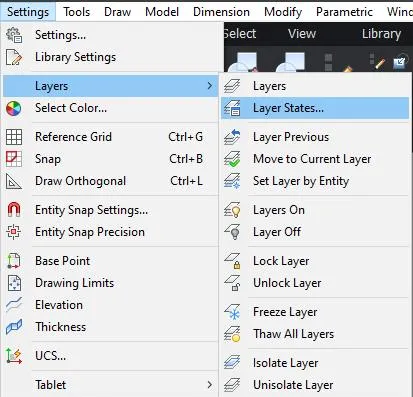
- Choose Layers - Layer States … in the Settings menu.
- Click the New icon (
 ) in the Details toolbar.
The current layer settings are now saved in a new Layer State.
If needed, click the Tree View icon (
) in the Details toolbar.
The current layer settings are now saved in a new Layer State.
If needed, click the Tree View icon (  ) to see the layout below.
.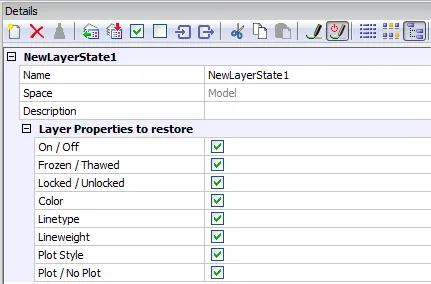
- Click the Name field and type a new name to replace the default name NewLayerState1.
- (optional) Type a description in the Description field.
- (optional) Check the properties you want this layer state to restore.
- Click the All Off icon ( ) in the Details toolbar to deselect all properties.
- Click the All On icon ( ) in the Details toolbar to select all properties.
- Click a checkbox to select or deselect the property.
Layers in paperspace (for printing/PDF)
In a viewport on a Layout, the same layers are on and off as in modelspace by default. This means you have to turn layers on and off per Layout if you want to see different layers on different layouts. To avoid this, there is a VP Freeze setting in the layers panel.
- Make modelspace active in a viewport.
- Find the VP Freeze column in the layer panel and turn the layer off if you don’t want to see it in this viewport.
A layer that is set to Freeze (not VP Freeze) is never printed. So if you used VP Freeze to keep certain layers from printing in certain viewports, make sure all layers are on in modelspace before you print, or at least all the layers you want to print.