The Library
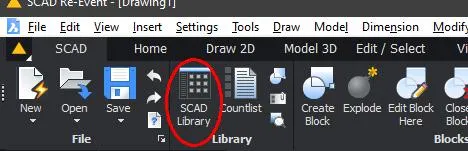
Open the library with the command SCADLIB or from the ribbon:
Click the bottom item in the menu to open an icon menu with the blocks:
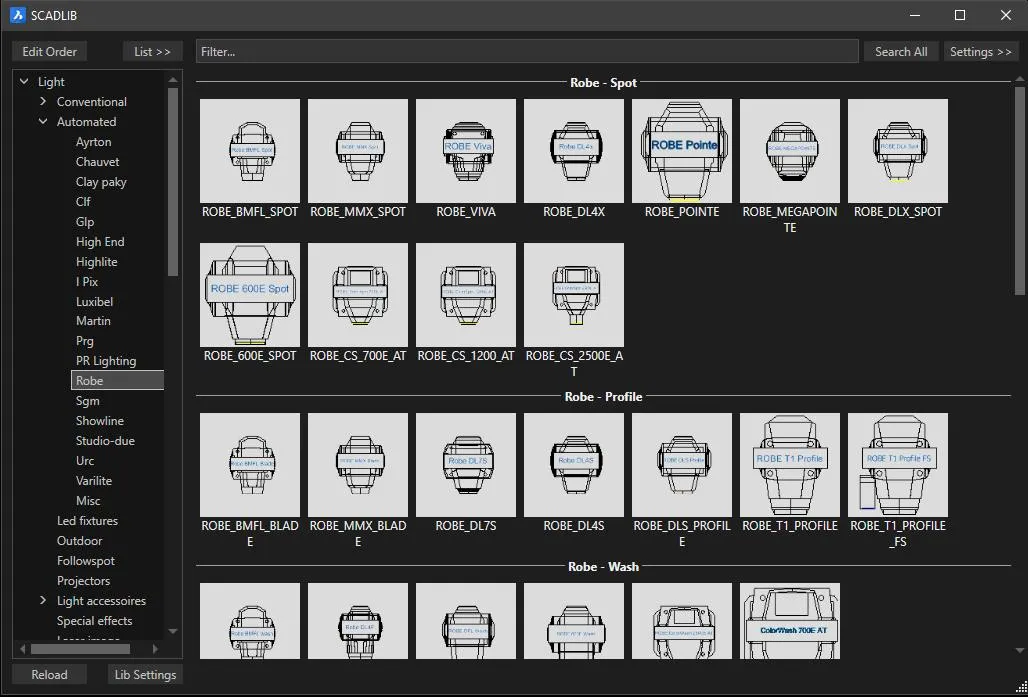
The list on the left contains all blocks in this folder. The icons are split into pages. To switch pages, click the page button on the right. Hold the cursor over an item to see some database details, such as weight and power.
Click (or double-click, depending on the settings) an item, or click INSERT, to insert the block. You see a preview image of the block and can click anywhere in the drawing to insert it. You can also rotate the block before you insert it. You have the following options:

- Align (Ctrl key). Hold the Ctrl key to rotate the block dynamically. Rotating starts when you press Ctrl and stops when you release it. Combine this with entity snaps to align the block exactly with existing items in the drawing before you insert it.
- Left (L [enter]). Rotates the block counterclockwise by x degrees, as set by Set angle (the last option).
- Right (F9 or R [enter]). Rotates clockwise.
- Angle (A [enter]). Asks for the rotation angle.
- REset (RE [enter]). Resets the rotation.
- Angle Dif (D [enter]). Asks for two angles and rotates the block by the difference between them. This is mostly used with the move and copy commands, when the block was already rotated before you move or copy it.
- X (X [enter]). Rotates the block 90 degrees around its original X axis.
- Y (Y [enter]). You guessed it.
- FlipY (F [enter]). Reflects (mirrors) the item on the Y axis before you insert it.
- Next (N [enter]). Grabs the object at the next point. This is a Point object in the block, so place several points at the right spots in a block to enable this function.
Settings
Click Settings to open the settings section of SCADLIB on the right.
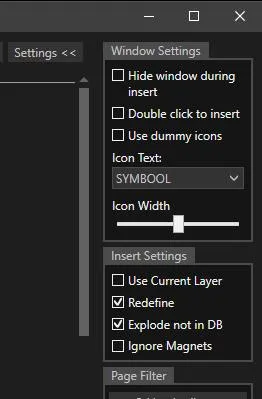
The settings are:
- Hide windows during insert. Turn this on if the menu is in the way while inserting.
- Double click to insert. Use this if you prefer to insert blocks with a double-click.
- Use dummy icons. In the previous version of
SCADLIBthe layout was fixed at 5 by 5 icons. Dummy objects let you create empty spaces to get a tidy layout. The current menu has a free layout, so this is sometimes not wanted. Hence this setting. - Icon Text. The text under the icon. The list shows all fields found in the database (see
SETLIB). - Icon Width. The size of the icons. Double-click the text to reset it to the default size.
- Redefine. Once a block is inserted in the drawing, its definition (what the block looks like) is stored in the drawing. If you change the block in the drawing, all blocks in the drawing change with it. When you insert a block with a name that already exists in the drawing, the definition in the drawing takes priority. So if the block was changed in the drawing, the changed block is inserted. Unless Redefine is checked: then the definition is overwritten with the version from the library. If you never change library blocks in the drawing, this setting is not relevant. Leave it off for more speed.
- Explode not in DB. The database can have an Explode column (the standard CADBASE database of SCAD Re-Event has it). The value in this column decides whether a block may be exploded after insertion. (The properties bar shows whether this is on for an inserted block.) With this setting you decide whether an inserted block is explodable when it is not known in the database. Example: you have a ramp built from Layher material. Sometimes you want to change the ramp after inserting it, so you explode and edit it. But you never want to explode a Layher ledger, because then
COUNTLISTno longer counts it. - Ignore Magnet. Use this if, for whatever reason, you don’t want the Magnets to work during insertion.
Pages
Pages are created with Edit Order, at the top left of SCADLIB.
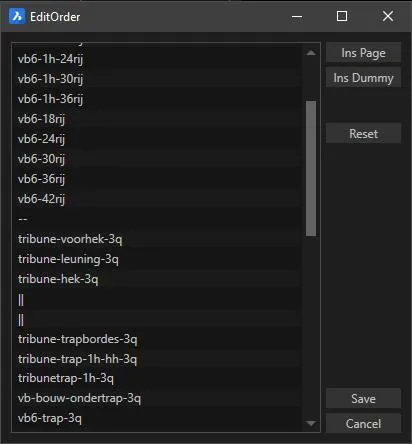
After you create a page with Ins Page, you can rename it by right-clicking the name. After you click a name under Page Filter, only the icons from that page are shown. This stays active until you go to another place in the library and come back.
Searching in SCADLIB
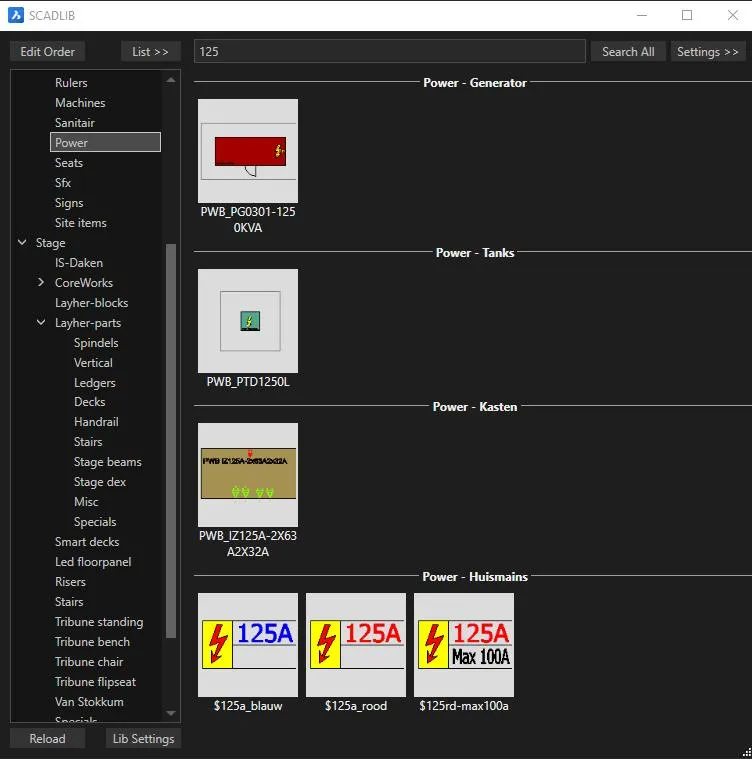
Type text in the search bar at the top to filter the icons in SCADLIB. In this example “125” is used, so only blocks with “125” in their name are shown.
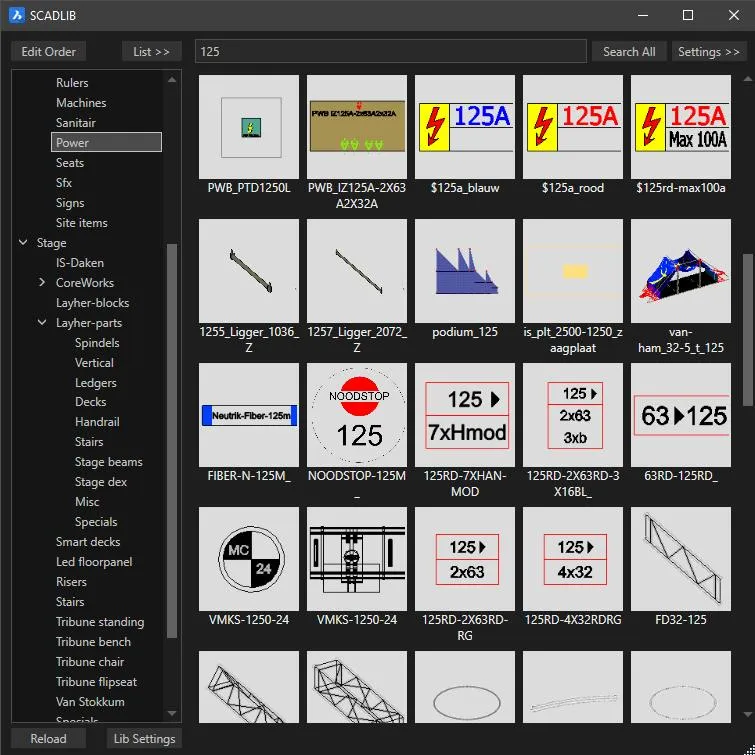
If you press Enter after typing the text, or click Search All, the whole library is searched. This is the result:
Right-clicking icons
Some functions are under the right mouse button:
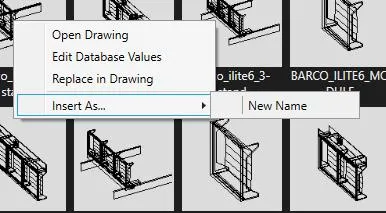
- Open drawing: opens the DWG of the block. If you change something here, the change is made in the SCAD Re-Event library, and all following inserts include it. Note that a library update can undo the change.
- Edit Database values: edit or create the block’s data in the SCAD Re-Event database or in your own database (custom database).
- Replace in drawing: replace a block in the drawing with a block from the library.
- Insert As: insert into the drawing, but with a name you choose.