Entity Snaps
To measure accurately, you must be able to click points in the drawing accurately. Object (Entity) Snaps are the drawing aid for this.
Opening the Entity Snaps toolbar
To open the Entity Snaps toolbar:
- Place the cursor over a toolbar and right-click. A menu appears.
- In the menu, point to Toolbars and then SCAD Re-Event. A list of all available toolbars appears. All open toolbars are marked in the list.
- Click Entity Snaps in the list.
Activating Entity Snaps
The icons of active entity snaps appear pressed in the Entity Snaps toolbar.
- Click the icon in the Entity Snaps toolbar to activate it. A pressed icon means that entity snap is active.
- Click a pressed icon to deactivate it.
- Click the Clear Entity Snaps icon (
 ) to deactivate all Entity Snaps.
Alternative ways to choose entity snaps:
- Hold down the Shift key and right-click.
- If the MBUTTONPAN system variable is set to OFF, the entity snaps list appears when you press the middle mouse button (scroll wheel).
| Name | Icon | Mark | Description |
|---|---|---|---|
| Nearest |  |  | Snaps to the nearest point on an object. |
| Endpoint |  |  | Snaps to the nearest endpoint of an object or polyline segment. |
| Midpoint |  |  | Snaps to the midpoint of an object or polyline segment. |
| Center |  |  | Snaps to the center point of an arc, circle, polygon, ellipse or elliptical arc. Snaps to the centroid of a closed polyline. |
| Perpendicular |  |  | Snaps to the perpendicular point on another object. Snap to an arc, circle, ellipse, line, polyline, infinite line, ray, spline or edge of a face to create a perpendicular to that object or to an extension of that object. |
| Tangent |  |  | Snaps to a point on an arc, ellipse, spline or circle such that a line constructed from the previous point is tangent to the chosen object. |
| Quadrant |  |  | Snaps to the nearest quadrant point (0°, 90°, 180°, 270°) of an arc, circle, ellipse or elliptical arc. |
| Insertion |  |  | Snaps to the insertion point of an attribute, symbol or text object. |
| Point |  |  | Snaps to a Point object. |
| Intersection |  |  | Snaps to the intersection of any combination of objects. |
| Apparent Intersection |  |  | Snaps to the apparent intersection, in the current view, of two objects that do not intersect in three-dimensional space. |
| Extension |  |  | Snaps to the extension of an object or to the intersection of the extensions of two objects. |
| Clear | | Turns off all entity snap modes. |
Entity Snap in 2D and 3D (OSNAPZ)
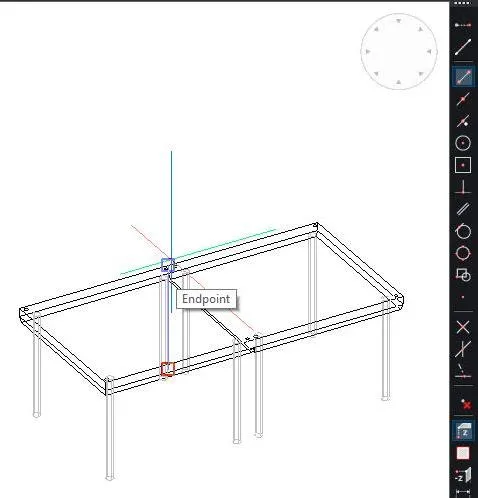
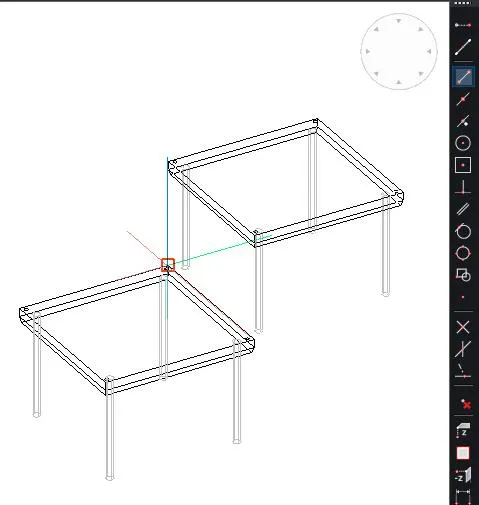
Object snaps work in 3D by default. If the endpoint of a line or a vertex is above the ground, that point is picked. However, if OSNAPZ is set to 1, the picked point is projected onto the XY plane of the current UCS at the current elevation.
This is especially useful when working in top view, for example on the floor plan of a festival. Most objects stand on the ground and do not need to be snapped in 3D.
With and without OSNAPZ
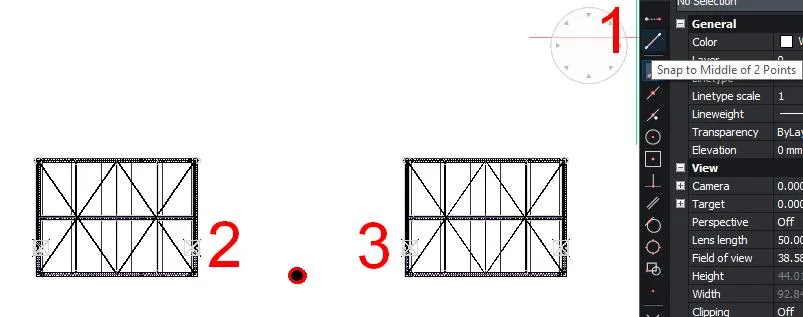
‘Middle of 2 points’ snap

- Do one of the following when prompted to specify a point:
- Click the Snap to the middle of 2 points () button on the Entity Snaps toolbar.
- Type mtp or m2p in the command line and press Enter.
- Hold down the Shift key, right-click and choose Snap to middle of 2 points in the context menu.
You are prompted: First middle point:
- Specify the first point.
- You are prompted: Second middle point:
- Specify the second point.
- The point midway between the two points is picked.