Drawing display
When you open a DWG, it shows the view as it was last saved. A DWG has two workspaces: Model Space and Paper Space. Paper Space consists of one or more layouts. Below the drawing area you see a row of tabs: Model, and one for each layout. Click a tab to switch between Model Space and one of the layouts. If the bottom edge of the drawing window can’t fit all the layout tabs, use the navigation buttons on the left to scroll through them.

Model Space
Model Space contains the drawing entities. Model Space consists of a single viewport, but you can divide it into multiple viewports. Each viewport can show a different part of the drawing.
Paper Space
As the name says, Paper Space is used to create layouts for printing. Every drawing has at least one layout, and each layout is made up of one or more viewports. Each viewport can show a different part of the drawing at a different scale. In each layout you can add title blocks, legends, frames, etc. that you need for printing the drawing. Such entities are visible in the layout where you add them, not in the other layouts or in Model Space.
Layers
All graphic information in a DWG is on one of several layers. Every drawing has at least Layer 0 (zero). The number of layers is not limited. You can change the settings of a layer. The active layer is highlighted.
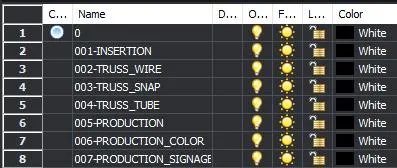
The settings of a layer are:
- Layer Name: every layer has a unique name
- On/Off: ON ( = visible) or OFF ( = invisible)
- Freeze: THAWED ( = visible) or FROZEN ( = invisible)
- Locked: UNLOCKED ( = object can be edited ) or LOCKED ( = cannot be edited )
- Color: every layer has a color
- Line type: every layer has a line type
- Line weight: every layer has a line weight
- Plot Style: every layer has a plot style (print style) for the objects on the layer
- Plot: Yes ( = objects are printed) or no ( = not printed)