Geographic data
SCGEO
The SCGEO command imports aerial photos, roads, cadastral boundaries and 3D buildings from PDOK.nl and 3DBAG.nl (Dutch open geodata services).
SCGEO works with RD coordinates (the Dutch national grid). These are X,Y coordinates, which SCAD Re-Event can also handle. Locations are often shown in degrees (latitude, longitude), for example in Google Maps.
RD coordinates are in meters, so the drawing must be in meters (command UNITS). A drawing made in millimeters can’t simply be converted to meters. See below for how to move an existing drawing to RD (meter) coordinates.
A second requirement is that the drawing has a name, meaning it has been saved at least once. This is because aerial photos are stored separately from the drawing, in a subfolder of the folder that contains the drawing.
Starting from an empty meter drawing: start SCGEO, find the location with the map (Open Map), right-click a location and then click the coordinates (these are degrees). SCGEO converts them to X,Y (RD).
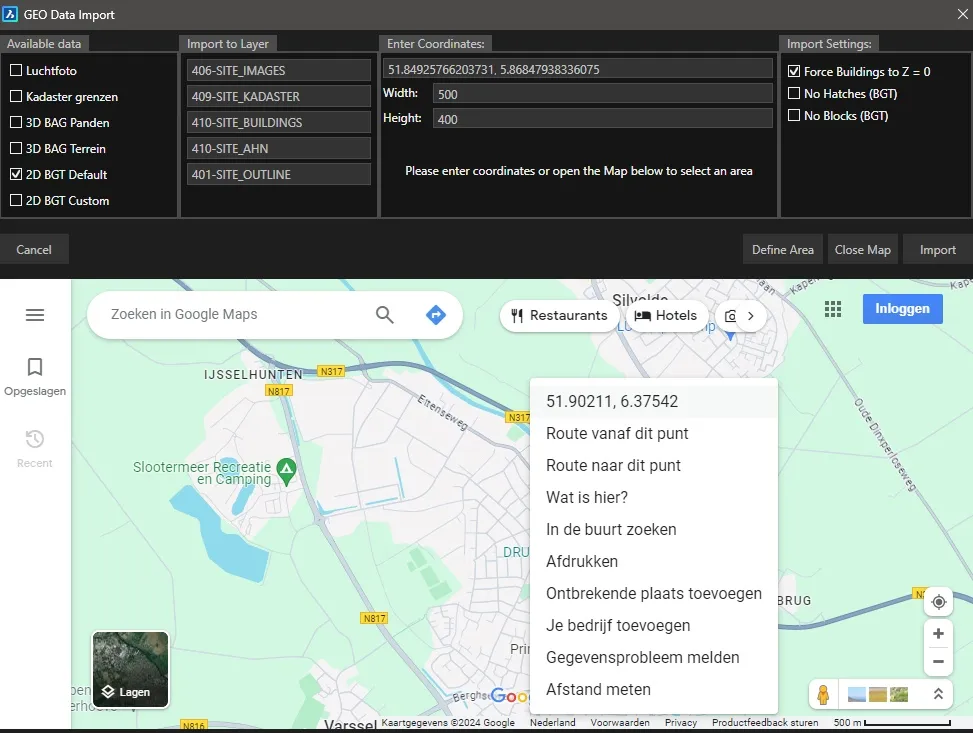
Next, enter how large the area to import should be. You don’t have to import the whole area in one go, because you can use SCGEO as often as you need. You also don’t need the map anymore: you can simply draw a rectangle in the drawing to mark what should be imported. You can see where you are in the drawing because something is already there. Do this with the Define Area button.
The data you can import is:
- Aerial photo
- Cadastral boundaries
- 3D BAG (Basisregistratie Adressen en Gebouwen, the Dutch register of addresses and buildings). The 3D buildings are based on scans and photos.
- 3D BAG terrain, a fairly coarse terrain representation. It can be interesting for certain locations, but is generally not used in a site plan.
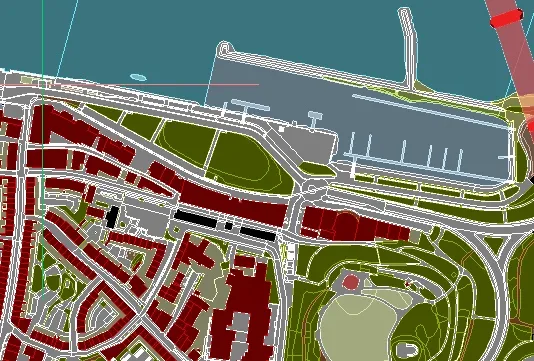
- 2D BGT (Basisregistratie Grootschalige Topografie, the Dutch large-scale topography register), the “road map”. Each terrain type has its own color and usually its own layer. Turn the hatching off if you only need lines (No Hatches setting, top right).
- 2D BGT custom. When this is checked, a menu appears before the data is imported where you can choose from categories. Far from everything is available, but whatever is available will be imported.
The Force Buildings to Z = 0 setting puts all 3D buildings at Z=0. This can lead to a wrong display, because a building is usually not at sea level. But since aerial photos also end up at Z=0, it can be useful for nicer pictures.
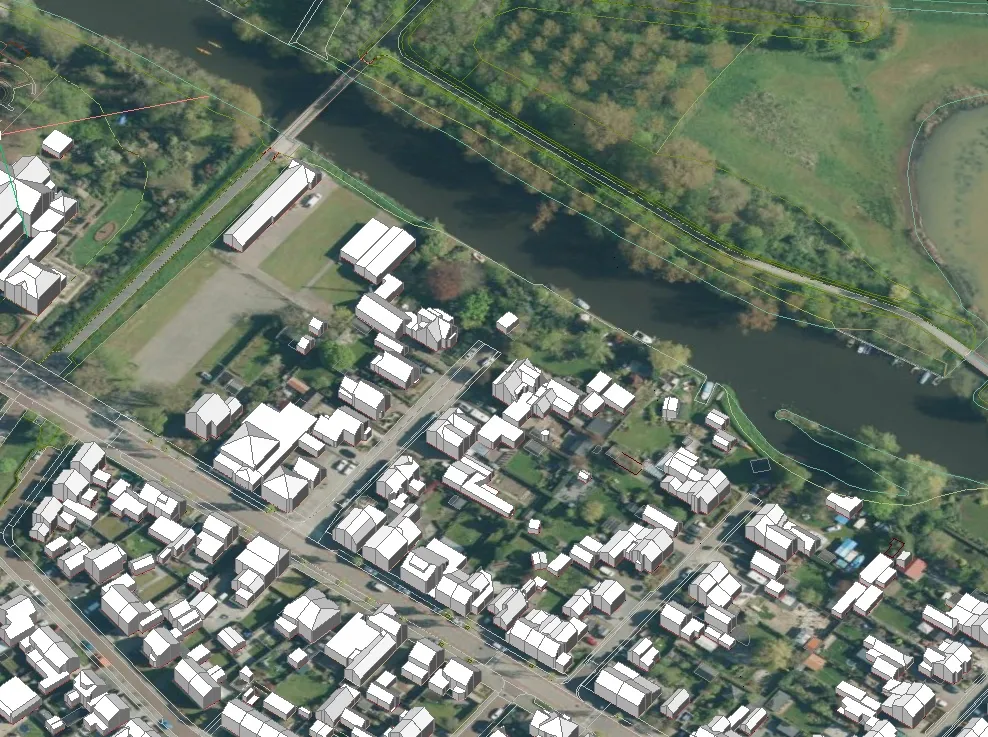
Below is an example of the result (aerial photo and 3D BAG):
2D BGT with hatching:
The images are placed in a subfolder of the drawing’s location. Don’t forget to send it along if the drawing needs to be opened somewhere else. The maximum size you can import at once is 3 by 3 kilometers, but images are downloaded in smaller tiles.
Moving an existing drawing to RD coordinates. It happens that an existing drawing is to scale, but isn’t in the right place in terms of RD coordinates. Or the drawing is in millimeters, while RD is always in meters. The solution is fairly simple: make a location drawing with SCGEO as described above and insert the existing drawing into it. Then align the inserted drawing with the SCGEO site plan.
You can insert it with INSERT or with XA (Xref). With INSERT, the existing drawing is really contained in the SCGEO drawing. With XA, it is only referenced, so changes must be made in the existing drawing. Scaling from millimeters to meters happens automatically. If you want to keep drawing in the new RD drawing, you can simply EXPLODE the block that INSERT creates. Don’t forget to run the PURGEB5 command afterwards, so the unused block is removed.
From a (millimeter) drawing to a meter drawing in RD, in steps:
- check the units of the existing drawing (measure something and check that the
UNITSsetting is correct) - save the existing drawing
- make an empty drawing in meters and save that too
- set the location in the new drawing with
SCGEO, preferably with BGT, because you can snap to it, but not to a photo INSERTthe existing drawing and align it with theSCGEOsite plan- EXPLODE the inserted block
PURGEB5- save the new drawing
Mapconnect (other WMS services)
The MAPCONNECT command adds maps and aerial photos from a WMS service to the drawing as an image. The steps:
- Insert > Geographic location (or command _geographiclocation). As GIS Coordinate System, choose the coordinate system that fits the location and the WMS service. Check both ‘Store location in drawing’ and ‘Use map grid coordinate system’. The other settings don’t need to be changed. Click OK.
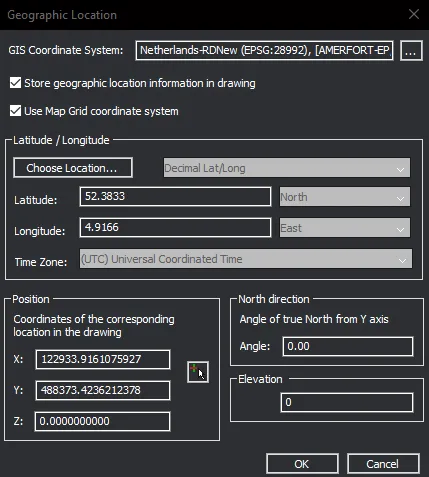
- Zoom in on the part where the aerial photo should go (not needed if you know the lat and lon coordinates).
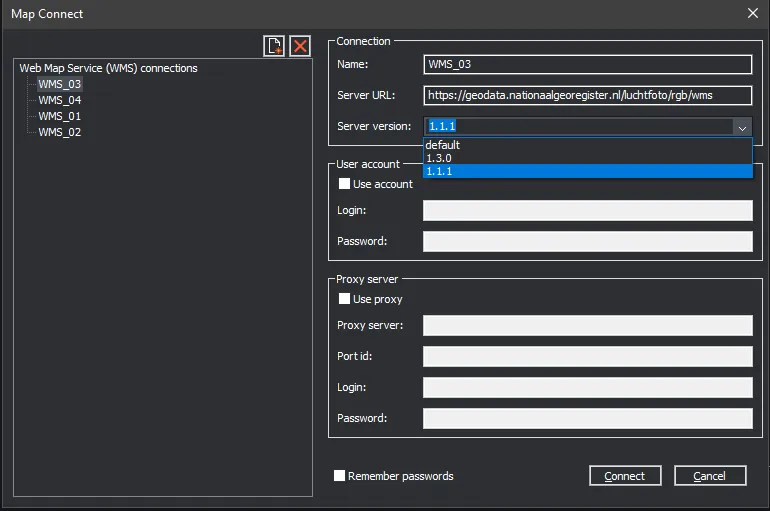
- Click Insert > Mapconnect (or command MAPCONNECT). Connect to the URL of the WMS service.
- On the left, check which map you want to download. At the top right you can change the image format to, for example, tiff. The default is jpeg.
- Click ‘Use Current View Extents’ to set the coordinates from your current view. If you don’t, the complete map of the service is downloaded.
- Enter the ‘Ground Resolution’ you want. Watch the download size! It can grow quickly with high resolutions over large areas. A higher resolution than the service itself provides doesn’t make the image sharper.
- Click Add to add the photo. The photos are added to the drawing as raster images. The downloaded JPGs are placed in the same folder as the DWG drawing.
Sometimes the following error appears when images larger than ~100 MB have to be downloaded: 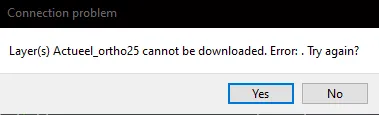
A workaround is to restart mapconnect and choose server version 1.1.1 in the dropdown menu. Downloading should then work again.