External References (XREF)
An external reference, or Xref, refers to another drawing. Instead of copying that drawing into the current drawing, only a reference to it is stored in the working drawing. You can attach multiple drawings to a working drawing.
The advantages of Xrefs are:
- The size of the working drawing stays small.
- The referenced drawings can be modified at the same time as the working drawing.
- The working drawing always shows the latest version of each referenced drawing.
An Xref is attached with the XATTACH command, found in the ribbon under Library:

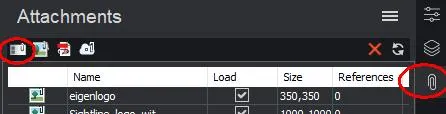
Or activate attachments under the properties bar and then click Attach DWG:
The loaded Xrefs are listed in the Drawing Explorer (command EXPLORER).
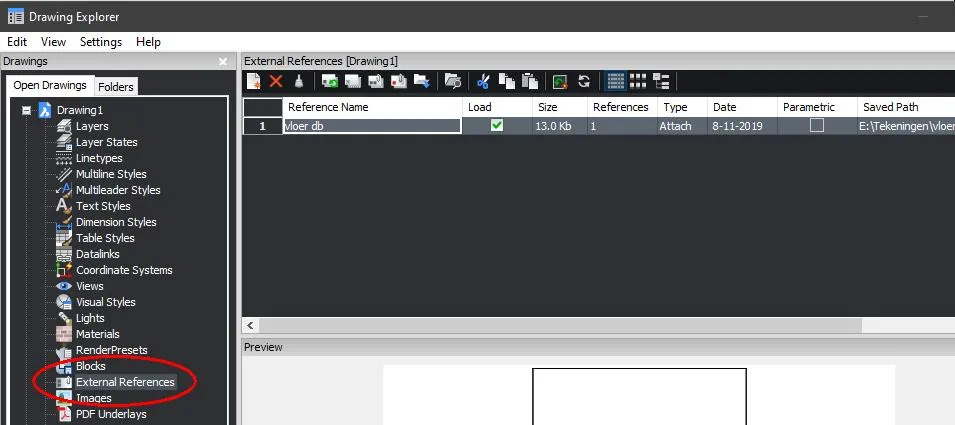
The options in the option bar:
Option | Description |
|---|---|
 Attach Xref Attach Xref | Attaches DWG files as xrefs; prompts you in the command line: External References: ? to list/Bind/Insert/Detach/Path/Reload/Unload/Overlay/ |
 Detach Xref Detach Xref | Removes the selected xref from the drawing without a warning. This is the same as using the Detach option. |
 Reload Xref Reload Xref | Reloads the selected xref. This is useful when the original DWG file has changed and you want to see the updated version in your drawing. |
 Unload Xref Unload Xref | Unloads the selected xref. This hides the xref from view. You can also click the check boxes in the Loaded column. |
 Bind Xref Bind Xref | Binds the xref to the current drawing to make the xref part of the drawing. References to the xref disappear from the Drawing Explorer. (This option is not available for xrefs that have been unloaded.) This option sets the BINDTYPE system variable to OFF (traditional binding behavior), which affects the behavior of the Bind option of the -xref command. |
 Insert Xref Insert Xref | Converts xrefs to blocks. This is similar to using the Insert command to insert external DWG files into drawings. References to the xref disappear from the Drawing Explorer. (This option is not available for xrefs that have been unloaded.) |
 Open Xref Open Xref | Opens the Xref for editing |
 Detail View Detail View | Shows the Xrefs as a list  |
 Icon View Icon View | Shows the Xrefs as icons |
 Tree view Tree view | Shows the relationship between xrefs in a “tree” view: |
External Reference Options
|
Option
|Description|
|—|—|
|Reference Name|Specifies the name of the xref. This name is assigned by BricsCAD, but you can change it. Click to rename.|
|Loaded|Turns loading of the xref on or off; click to change the load state:- On - loads the xref and makes it visible. - Off: unloads the xref and makes it invisible.
|Size|Reports the size of the xref DWG file. Very large files can slow down the system.|
|References|Shows the number of times the xref is attached to the drawing.|
|Type|Reports whether the xref is attached or an overlay: Attach - all referenced drawings are displayed.
Overlay - only the first xref of nested xrefs is displayed.
To change the type: detach the xref and reload it as an attachment or as an overlay.
Overlay and Attach work the same way. The difference is in how they treat xrefs that contain xrefs themselves
Overlay - adds only the first level of xref
Attach - attaches all referenced drawings| |Date|Shows the date of the file. This can help you determine whether you are working with the most recent revision.| |Saved Path|Reports the original path to the xref’s DWG file when it was first loaded. If the path cannot be found, click this field
 and then click the button. SCAD Re-Event displays the Select a file dialog.
To convert the Xref path type: - Right-click the Xref name. - Choose the path type in the context menu
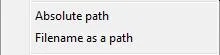 or:
or: 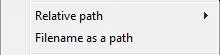 |
|Found Path|Reports the current path to the xref’s DWG file. In most cases this path should match the saved path.|
|
|Found Path|Reports the current path to the xref’s DWG file. In most cases this path should match the saved path.|